

InDesign Tips
AVOID ACCIDENTALLY BASING ONE STYLE ON ANOTHER.
InDesign’s text and graphic style features enable you to create libraries of complex formats that you can apply with a single click. Not only does this eliminate repetition when you want to use the same format again, it also facilitates design changes since modifications to an existing style automatically update all items to which the style has been applied.
InDesign styles include a "Based On" property, which creates a parent-child relationship between styles. The children automatically inherit the properties of their parents.
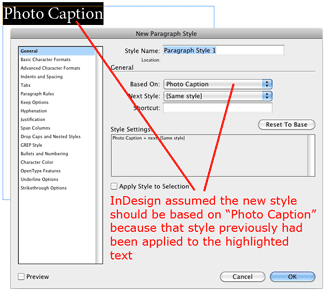
Unfortunately InDesign sometimes assumes you want to base one style on another. This is a problem if in fact you don’t.
To avoid this happening by mistake, always check the "Based On" setting when you create a new style. In the example here, InDesign assumed we wanted the new style to be based on the "Photo Caption" style because text is highlighted to which the "Photo Caption" style was previously applied.

LET INDESIGN DO THE MATH FOR YOU.
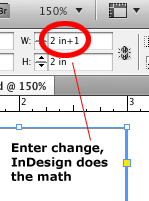
Sometimes you want to change a setting in InDesign by a numerical amount, for example make a box one inch wider, twice as tall, or half the height. If you don’t want to do the math yourself, It’s easy to have InDesign make the calculation for you:
- Click to the right of the setting you want to change.
- Enter the appropriate math symbol (+ - * /) and the amount of the change.
- Press the "Tab" key.
Use the same math symbols as in Excel:
| + | Add |
| - | Subtract |
| * | Multiply |
| / | Divide |
If you are adding or subtracting and number you enter is in a unit of measure different from the existing setting, enter the appropriate unit of measure after your number. For example, if the existing dimension is in inches and you want to make it one pica larger, type "+1p" following the current setting.
CHANGE DEFAULT MEASUREMENT TO INCHES.
When you create a new document, InDesign asks you to specify the page dimensions and margins in points and picas, units of measure used frequently in the printing and graphic design industries. If you want the new document dialogue box to prompt you for these dimensions in inches, do the following:
- Launch InDesign, but do not open any document.
- Under the "Edit" menu (Windows) or "InDesign" menu (Macintosh), open "Preferences," Units and Increments."
- Set both the horizontal and vertical measurement unit to inches.
- This change will not affect any existing InDesign documents, but will make inches the default measurement system for all subsequently created files.
If you make this change while a document is open, the change will affect only the document you are in while making the change.
COPY/PASTE TO SAME POSITION ON DIFFERENT PAGE.
Sometimes you want to Cut or Copy an item on one page and Paste it into the same position on another. That’s the function of the "Paste in Place" command under the "Edit" menu. Here is how it works:
- Select the item you want to Cut or Copy.
- Choose "Cut" or "Copy" from the "Edit" Menu (Cut deletes the original, Copy does not).
- Turn to the page onto which you want to Paste the item. It can be in the same or a different InDesign file.
- Choose "Paste in Place" from the "Edit" menu.
CREATE GUIDE THAT SPANS TWO FACING PAGES.
It’s easy to pull a horizontal guideline onto a page in InDesign -- just place your mouse pointer on the ruler at the top of the window, press the left button and drag the mouse onto the page.
But often when you are working with two pages side-by-side (Facing Pages) the guide appears only on one of the two pages, and you would like to have it span both.
Here is the rule as to whether a guide appears on one or both pages:
- If the mouse pointer is over a page when you pull the guide from the ruler, the guide appears only on that page.
- If the mouse pointer is to left or right of the pages, the guide appears on both.

Visit our picture gallery.

InDesign Training Class · InDesign Tech Support